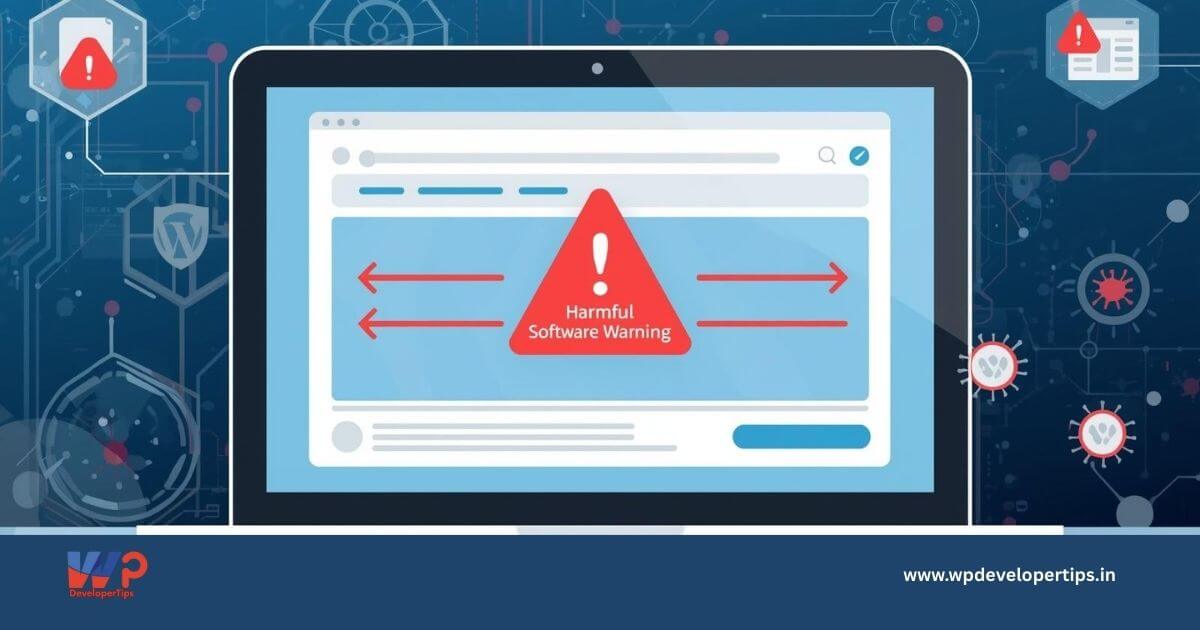
Many WordPress developers assume that deleting all files and installing a fresh copy of WordPress will immediately fix malware-related issues. However, in real-world scenarios, websites often continue to show “This site is unsafe” or “Website with harmful software” warnings even after a clean reinstall.
This article explains why this happens and outlines the exact steps required to permanently remove the warning.
What Does the “Website with Harmful Software” Warning Mean?
This warning is generated by Google Safe Browsing and displayed by browsers such as Chrome, Safari, and Firefox when a website is detected distributing malicious or unwanted content.
- Malware or trojans
- Unwanted software installations
- Phishing scripts
- Injected JavaScript or obfuscated PHP code
- Malicious redirects
Once detected, Google blacklists the domain, and browsers display security warnings to visitors.
Why the Warning Appears Even After a Fresh WordPress Installation
1. Google Blacklist Is Not Auto-Removed
Removing malware does not automatically remove the site from Google’s blacklist. A manual security review request is mandatory.
2. Browser-Level Security Caching
Browsers aggressively cache unsafe-site decisions. The warning may continue to appear even after cleanup.
3. CDN or Server Cache Serving Old Content
If the website uses Cloudflare, LiteSpeed, or hosting-level caching, previously infected pages may still be served.
4. Subdomain or URL-Level Infection
Google flags the entire domain, including subdomains like www, mail, or staging URLs.
5. Hosting IP Reputation Issues
In rare cases, the server IP itself may be blacklisted due to repeated malware incidents on shared hosting.
Step-by-Step Solution to Remove the Warning
Step 1: Verify the Warning Source
Use Google Transparency Report to confirm the blacklist status:
Google Safe Browsing Transparency Report
Step 2: Ensure the Website Is Completely Clean
- Remove all files from the server
- Install fresh WordPress core from wordpress.org
- Use a default theme only
- Do not install plugins temporarily
- Create a fresh
.htaccessfile
Step 3: Disable CDN and Caching Temporarily
Pause CDN services and purge all caches to ensure Google scans the origin server.
Step 4: Submit Security Review in Google Search Console
Add the site as a Domain Property, verify ownership, and submit a review under:
Security & Manual Actions → Security Issues
Suggested Review Message:
The website was previously compromised. All files were removed and replaced with a fresh WordPress installation. Infected scripts and redirects were eliminated. The site is now secure.
Review approval usually takes 24–72 hours.
Step 5: Test After Approval
Clear browser cache, test in incognito mode, and verify on mobile networks.
What If Google Rejects the Review?
Common causes include:
- Hidden infected subdomains
- Cached malware via CDN
- Hosting IP blacklist
- Leftover encoded files
In such cases, scan the entire hosting account or request an IP change from the hosting provider.
How to Prevent Future Malware Warnings
- Install Wordfence or Sucuri
- Enable firewall and login protection
- Avoid nulled plugins and themes
- Enable automatic updates
- Schedule daily backups
- Monitor file changes
Conclusion
A fresh WordPress installation alone does not remove harmful software warnings. Understanding Google Safe Browsing and completing the security review process correctly is essential for restoring trust and protecting website visitors.