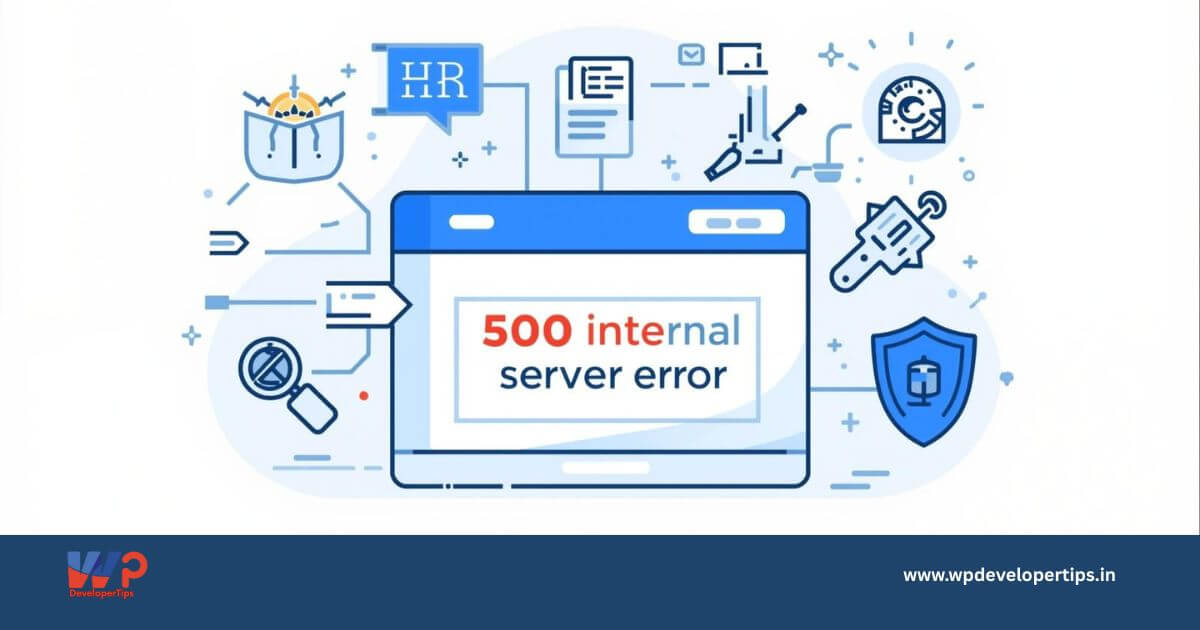
What Is a 500 Internal Server Error in WordPress?
The 500 Internal Server Error is one of the most common and frustrating issues faced by WordPress users. It indicates that something went wrong on the server, but the server is unable to specify the exact problem.
This error can appear after installing a plugin, updating a theme, changing server settings, or migrating your WordPress site.
How Does the 500 Internal Server Error Look?
- 500 Internal Server Error
- HTTP Error 500
- This page isn’t working – HTTP ERROR 500
- Internal Server Error
Common Causes of 500 Internal Server Error
- Corrupted
.htaccessfile - Faulty WordPress plugin or theme
- PHP memory limit exhaustion
- Incorrect file permissions
- Server or hosting misconfiguration
Step-by-Step Methods to Fix 500 Internal Server Error in WordPress
1. Enable WordPress Debug Mode
Debug mode helps identify the exact issue causing the error.
define('WP_DEBUG', true);
define('WP_DEBUG_LOG', true);
define('WP_DEBUG_DISPLAY', true);
Add this code to your wp-config.php file and reload your website.
2. Check and Regenerate the .htaccess File
- Login to your website via FTP or File Manager
- Rename
.htaccessto.htaccess_old - Login to WordPress Admin → Settings → Permalinks
- Click Save Changes
3. Deactivate All Plugins
Plugins are the most common reason for internal server errors.
- Rename the
pluginsfolder toplugins_old - If the site loads, reactivate plugins one by one
4. Switch to a Default Theme
If a theme is causing the issue, switching to a default theme can fix it.
- Rename your active theme folder
- WordPress will automatically switch to a default theme
5. Increase PHP Memory Limit
Low PHP memory can trigger 500 errors.
define('WP_MEMORY_LIMIT', '256M');
Add this to your wp-config.php file.
6. Check File and Folder Permissions
- Folders: 755
- Files: 644
Incorrect permissions can block server processes.
7. Re-upload Core WordPress Files
Replace wp-admin and wp-includes folders with fresh copies from WordPress.org.
8. Contact Your Hosting Provider
If nothing works, your hosting server may be the issue. Ask your host to check error logs and server configurations.
How to Prevent 500 Internal Server Errors
- Always use trusted plugins and themes
- Keep WordPress core, plugins, and themes updated
- Use reliable WordPress hosting
- Maintain regular backups
Final Thoughts
The 500 Internal Server Error in WordPress can look scary, but it’s usually easy to fix by following a structured troubleshooting approach. Start with plugins and .htaccess, then move to memory and server checks.
By applying these methods, you can restore your WordPress website quickly and safely.