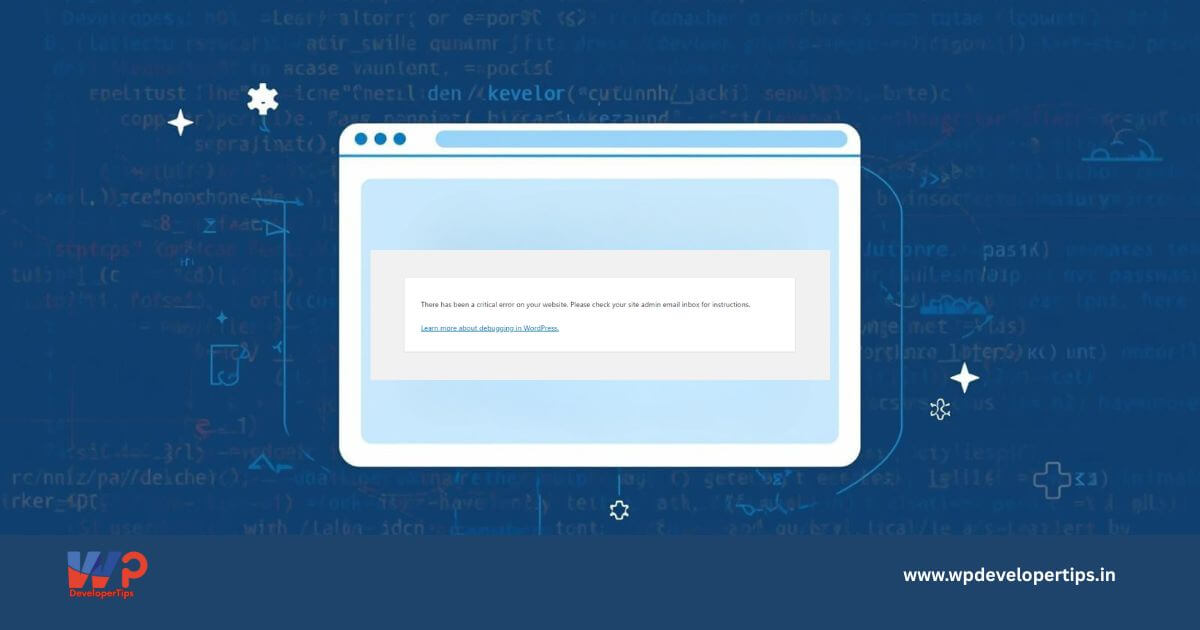
Seeing the message “There has been a critical error on this website” can be alarming—especially when your site suddenly goes down. This error usually appears when WordPress encounters a fatal PHP error and cannot continue loading the site.
In this guide, we’ll explain what causes this error and provide step-by-step solutions to fix it safely.
What Does “There Has Been a Critical Error on This Website” Mean?
This error indicates that WordPress encountered a fatal error—most often due to:
- Faulty or incompatible plugins
- Theme conflicts
- PHP version issues
- Corrupted WordPress core files
- Server memory limits
Unlike older WordPress versions that showed a blank white screen, newer versions display this user-friendly error message.
Step 1: Enable WordPress Debug Mode
Debug mode helps identify the exact error.
define('WP_DEBUG', true);
define('WP_DEBUG_LOG', true);
define('WP_DEBUG_DISPLAY', true);
Edit the wp-config.php file and add the above lines. Reload your site to view the exact error message.
Step 2: Check the Admin Email for Error Details
WordPress automatically sends an email to the site admin email address with:
- The file causing the error
- The plugin or theme name
- A recovery mode login link
Use the recovery link to log in and fix the issue.
Step 3: Deactivate All Plugins via FTP
Plugins are the most common cause of critical errors.
- Connect to your site using FTP or File Manager
- Navigate to
/wp-content/ - Rename the
pluginsfolder toplugins_old
If the site works, rename the folder back and activate plugins one-by-one to find the culprit.
Step 4: Switch to a Default WordPress Theme
If plugins aren’t the issue, the theme might be.
- Go to
/wp-content/themes/ - Rename your active theme folder
- WordPress will automatically switch to a default theme like Twenty Twenty-Four
Step 5: Increase PHP Memory Limit
Low memory limits can trigger fatal errors.
define('WP_MEMORY_LIMIT', '256M');
Add this line to wp-config.php and refresh your site.
Step 6: Check PHP Version Compatibility
Some plugins and themes are not compatible with newer PHP versions.
Try switching between PHP 7.4 or PHP 8.0 from your hosting control panel.
Step 7: Re-upload WordPress Core Files
If core files are corrupted:
- Download a fresh copy of WordPress
- Upload only the
wp-adminandwp-includesfolders - Do NOT overwrite
wp-content
Step 8: Check Server Error Logs
Look for error logs in:
/wp-content/debug.log- Hosting control panel → Error Logs
These logs often reveal the exact cause.
How to Prevent This Error in the Future
- Update plugins and themes regularly
- Avoid using nulled or outdated plugins
- Use a staging site before updates
- Take daily backups
- Monitor PHP compatibility
Final Thoughts
The “There Has Been a Critical Error on This Website” message may look serious, but in most cases, it can be fixed within minutes by identifying plugin, theme, or PHP issues.