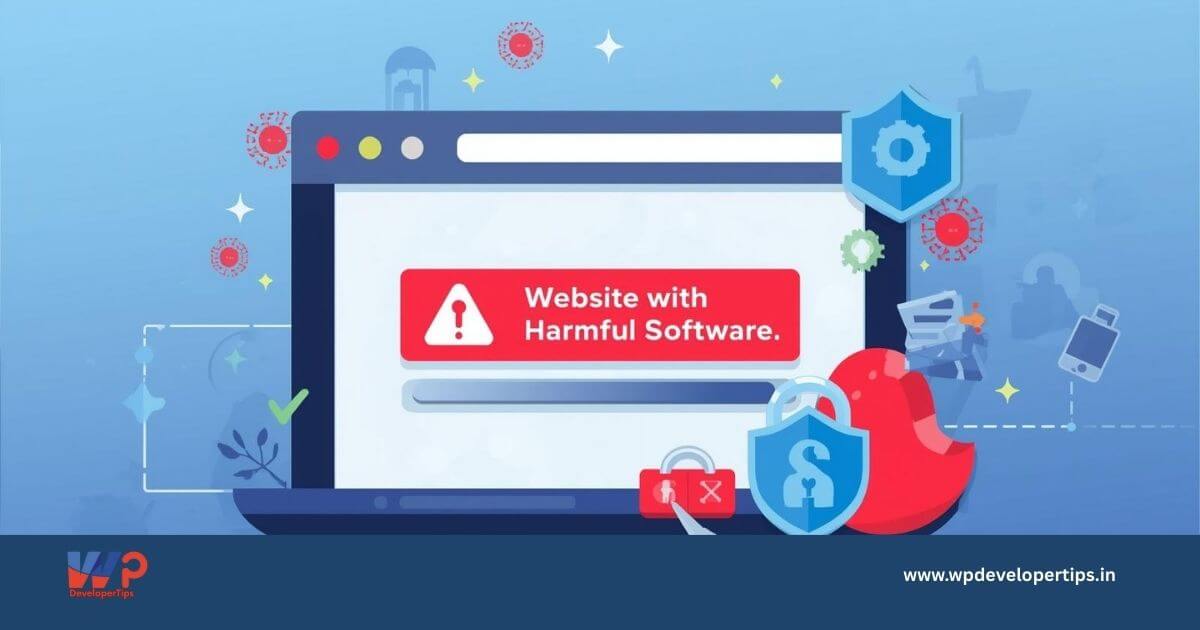
Seeing a “Website with Harmful Software” or “This site is unsafe” warning when loading a website can be alarming. Visitors usually leave immediately, search engines reduce trust, and business credibility can be affected within hours.
This article explains what the harmful software warning means, why browsers display it, and the immediate steps required to fix the issue.
What Is the “Website with Harmful Software” Warning?
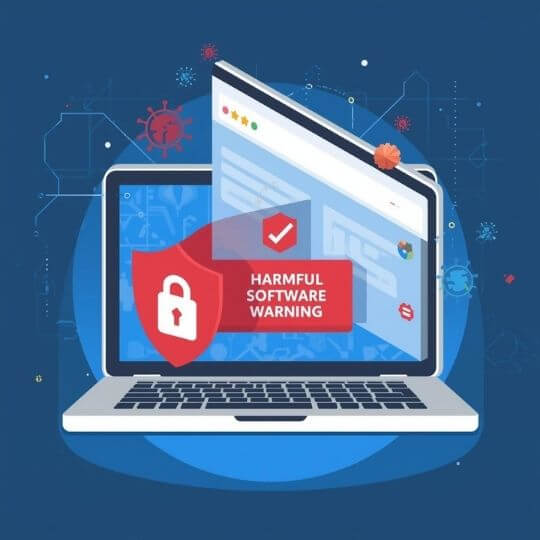
The harmful software warning is a browser security alert powered by Google Safe Browsing. Browsers such as Google Chrome, Safari, Firefox, and Microsoft Edge use this system to protect users from dangerous websites.
Common warning messages include:
- This site is unsafe
- Website with harmful software
- Deceptive site ahead
- Attackers on this site may try to trick you
Why Do Browsers Show This Warning?
A website is flagged when Google detects that it may expose visitors to security risks, such as:
- Installing malware or unwanted software
- Running phishing scripts
- Injecting malicious JavaScript
- Redirecting users to spam or scam websites
- Containing hacked or obfuscated PHP files
Once detected, Google blacklists the entire domain, not just a single page.
Common Reasons Websites Get Flagged
1. Vulnerable WordPress Plugins or Themes
Outdated or poorly coded plugins and themes are the most common entry points for attackers.
2. Nulled or Pirated Software
Cracked premium plugins and themes often contain hidden backdoors or malware.
3. Weak Login Credentials
Simple passwords and unlimited login attempts allow brute-force attacks.
4. Infected Hosting Environment
On shared hosting, malware can spread between websites if the server is compromised.
5. Delayed Malware Cleanup
The longer malware remains active, the higher the chance Google detects and flags the site.
Immediate Steps to Fix the Issue
Step 1: Do Not Ignore the Warning
Ignoring the warning can lead to loss of traffic, SEO penalties, ad account suspension, and customer trust issues.
Step 2: Confirm Blacklist Status
Check your domain using the Google Safe Browsing Transparency Report to confirm whether the site is officially flagged.
Step 3: Temporarily Restrict Access
Enable maintenance mode or restrict access to prevent visitors from being exposed to malicious content.
Step 4: Scan the Website for Malware
Use reliable security tools such as Wordfence, Sucuri SiteCheck, or MalCare. Also scan the hosting account using cPanel or ImunifyAV.
Step 5: Clean or Reinstall the Website
Based on the severity of the infection:
- Remove infected files
- Reinstall fresh WordPress core from the official source
- Replace plugins and themes with clean originals
- Remove unknown admin users
- Clean database injections if present
In severe cases, a complete fresh installation is safer than partial cleanup.
Removing the Warning from Browsers
Cleaning the website alone does not remove the warning. You must request a security review from Google.
Request Review in Google Search Console
- Add the website to Google Search Console
- Verify ownership
- Go to Security & Manual Actions → Security Issues
- Fix all reported issues
- Click Request Review
Google usually completes the review within 24–72 hours.
Why the Warning May Still Appear After Cleanup
Even after fixing everything, warnings may persist temporarily due to:
- Browser security cache
- CDN cache (Cloudflare, LiteSpeed)
- Infected subdomains
- Hosting IP blacklist
This usually resolves automatically after Google approves the review.
How to Prevent Harmful Software Warnings in the Future
- Keep WordPress, plugins, and themes updated
- Avoid nulled or pirated software
- Use strong passwords and two-factor authentication
- Install a trusted security plugin
- Enable daily backups
- Monitor file changes regularly
- Use secure and reputable hosting
Conclusion
The “Website with Harmful Software” warning is serious but completely fixable. Acting quickly, cleaning the site properly, and completing Google’s security review process are essential to restoring trust, protecting visitors, and maintaining search visibility.