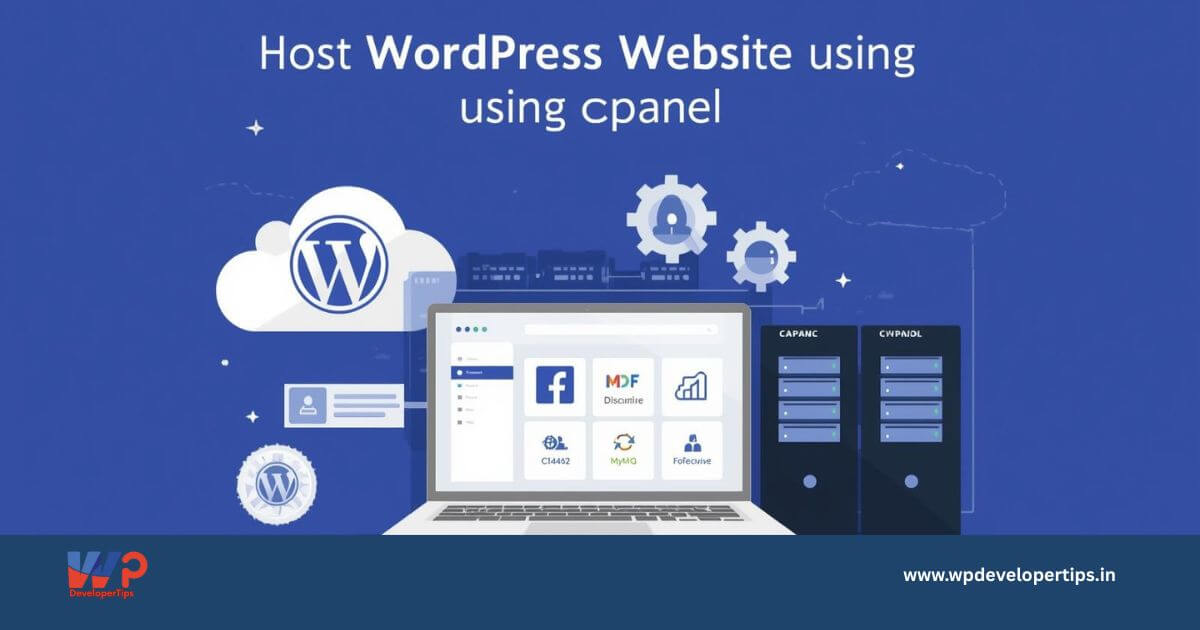
Hosting a WordPress website using cPanel is one of the most popular and beginner-friendly methods available today. Most shared hosting providers offer cPanel, making WordPress installation and management simple—even for non-technical users.
In this guide, you’ll learn what cPanel is, what you need before hosting WordPress, and the different methods to host a WordPress website using cPanel.
What Is cPanel?
cPanel is a web-based hosting control panel that allows users to manage their websites and hosting accounts easily. It provides a graphical interface to perform tasks that would otherwise require technical knowledge.
- Manage domains and subdomains
- Upload and manage website files
- Create and manage databases
- Install WordPress and other applications
- Configure email accounts
- Handle backups and security settings
What You Need Before Hosting WordPress in cPanel
- A registered domain name (example: yourwebsite.com)
- A web hosting plan with cPanel access
- cPanel login credentials
- A stable internet connection
Method 1: Install WordPress Using Softaculous (Recommended)
Most hosting providers include Softaculous Apps Installer, which allows you to install WordPress in just a few clicks.
Step 1: Log in to cPanel
Open your browser and visit: https://yourdomain.com/cpanel
Enter your cPanel username and password.
Step 2: Open Softaculous
- Scroll to the Software or Applications section
- Click on Softaculous Apps Installer
- Select WordPress
Step 3: Start WordPress Installation
- Click Install Now
- Select protocol (HTTPS is recommended)
- Choose your domain
- Leave the directory field empty to install on the main domain
Step 4: Configure Site Details
- Site Name and Description
- Admin Username and Password
- Admin Email Address
- Language preference
Step 5: Complete Installation
Click Install and wait for the confirmation message. Your WordPress website will be live immediately.
Method 2: Install WordPress Manually Using cPanel
Manual installation is useful when Softaculous is not available or when you want full control over the setup.
Step 1: Download WordPress
Download the latest WordPress ZIP file from the official WordPress website.
Step 2: Upload Files Using File Manager
- Log in to cPanel
- Open File Manager
- Navigate to
public_html - Upload and extract the WordPress ZIP file
Step 3: Create a MySQL Database
- Go to MySQL Databases
- Create a new database
- Create a database user
- Assign the user to the database with All Privileges
Step 4: Configure wp-config.php
Rename wp-config-sample.php to wp-config.php and update the database name, username, password, and host.
Step 5: Run WordPress Installer
Open your domain in a browser and follow the WordPress installation wizard to complete the setup.
Setting Up SSL (HTTPS) in cPanel
Most hosting providers offer free SSL certificates to secure your website.
- Go to SSL/TLS or Security in cPanel
- Enable AutoSSL
- Force HTTPS using hosting settings or a WordPress plugin
Managing WordPress Through cPanel
- File Manager – Manage themes, plugins, and uploads
- phpMyAdmin – Database management
- Email Accounts – Create professional email addresses
- Backup Wizard – Take full or partial backups
For content and site management, use the WordPress Admin Dashboard at /wp-admin.
Common Issues and Solutions
- WordPress not loading: Check database credentials
- White screen error: Increase PHP memory or disable plugins
- Permission issues: Set folders to 755 and files to 644
Advantages of Hosting WordPress in cPanel
- User-friendly interface
- Quick WordPress installation
- Easy file and database management
- Widely supported by hosting providers
- Affordable and scalable
Conclusion
Hosting a WordPress website using cPanel is simple, reliable, and suitable for beginners as well as professionals. With automatic and manual installation options, cPanel provides full control over your WordPress hosting environment.
Whether you are launching a blog, business website, or eCommerce store, WordPress hosting with cPanel is a smart and proven choice.